
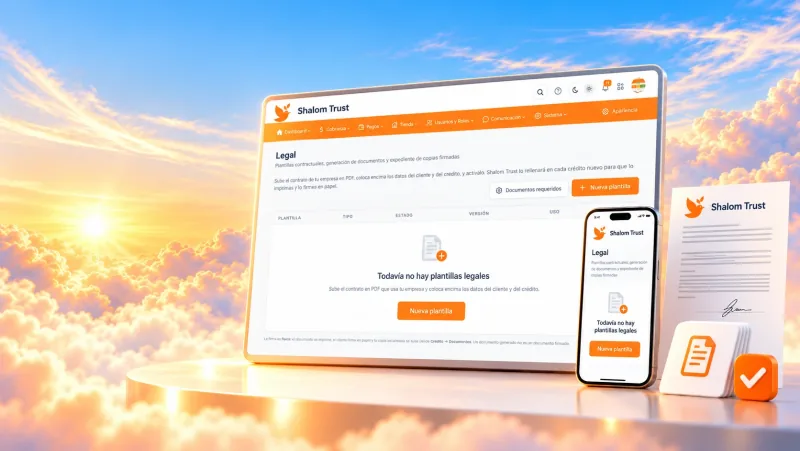
Contract and legal templates
You prepare the contract with your legal templates and link it to the device. The lock only counts the overdue installments of that contract.
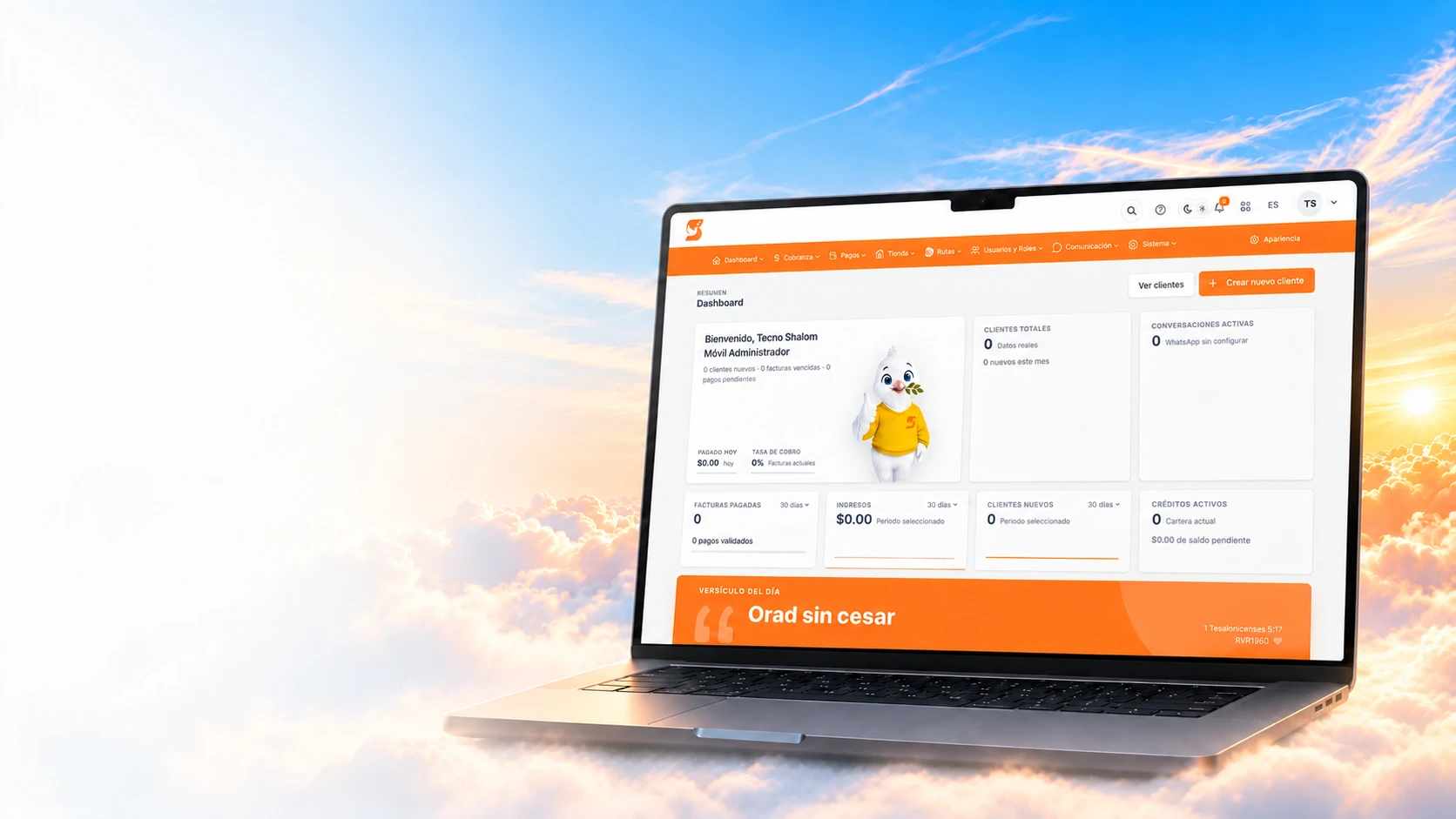
Manage the devices you sell on credit and set security policies tied to overdue payments, using the MDM capabilities available for each device.
Automatic locking is decided by a policy your business configures, not by the MDM provider.
You prepare the contract with your legal templates and link it to the device. The lock only counts the overdue installments of that contract.
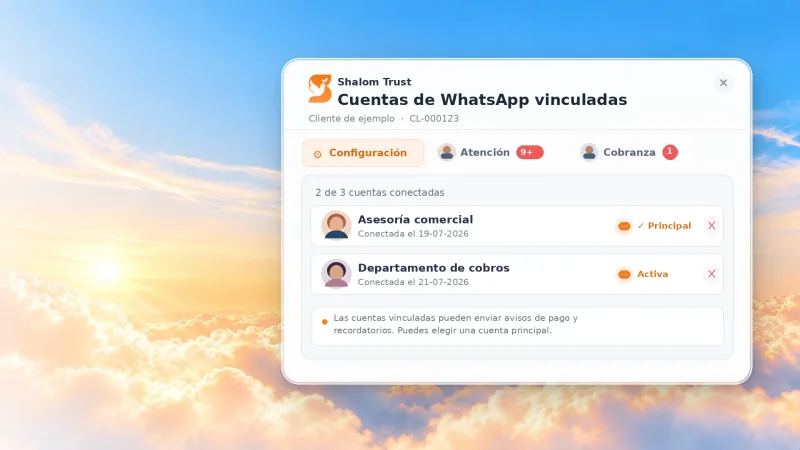
You connect your business WhatsApp and send payment reminders, confirmations and lock notices from the CRM using templates.
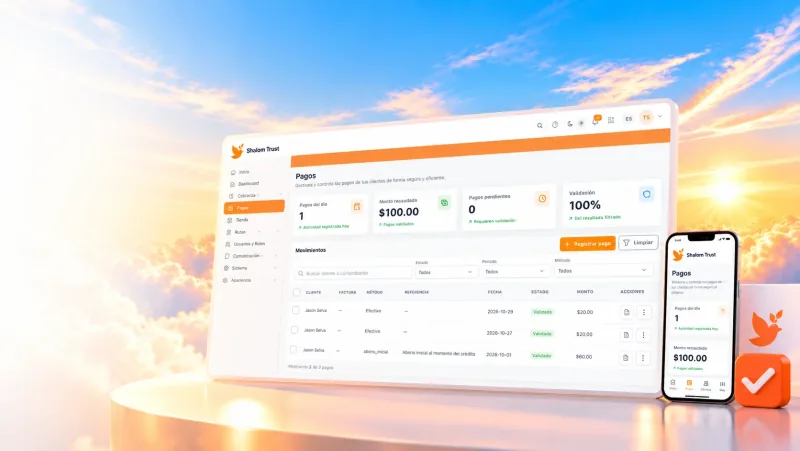
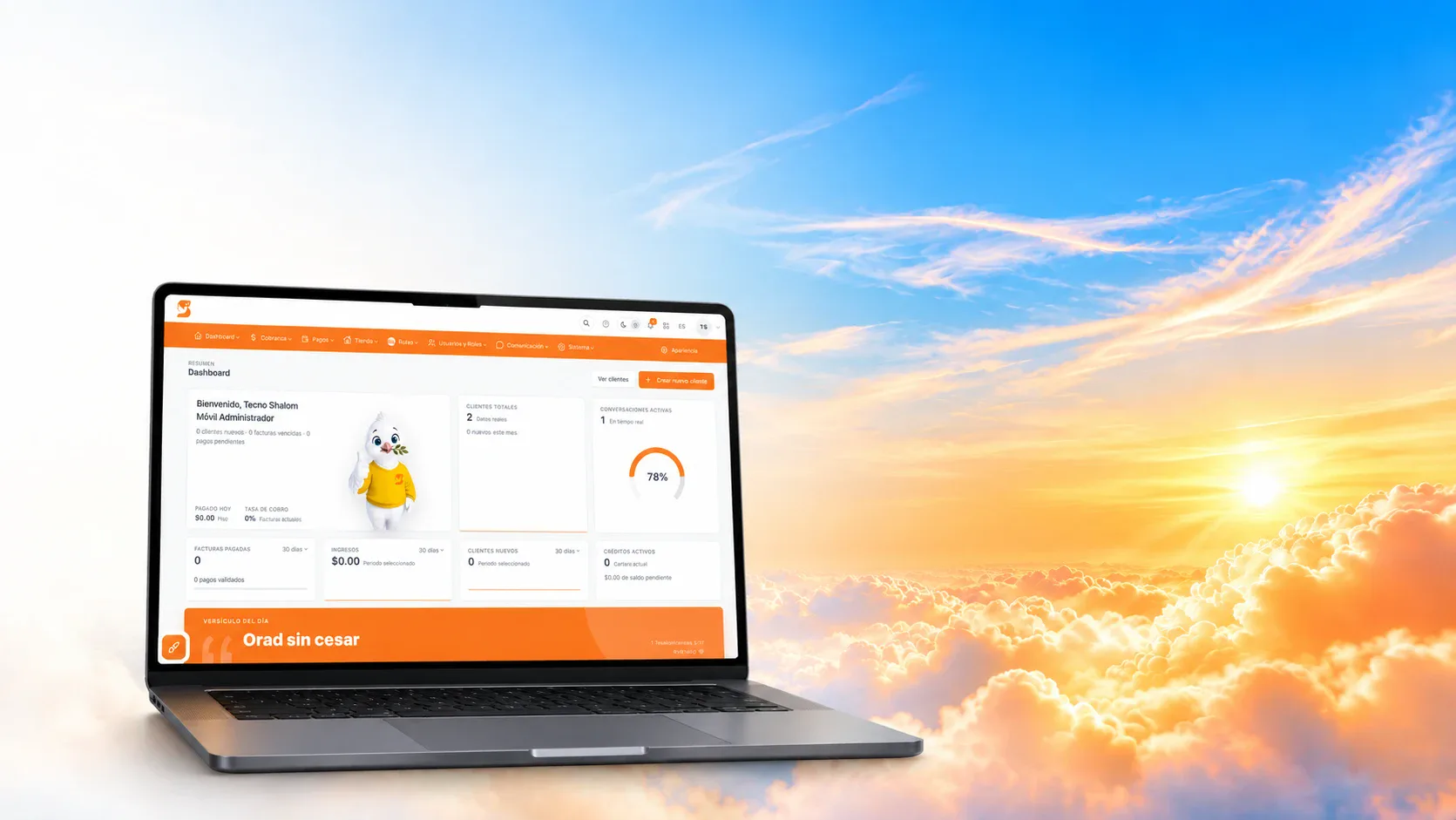
You see what each client has paid and what is still due. The status is checked periodically and as soon as a payment is confirmed.
If the client needs more time, you reschedule their payment calendar. An active payment agreement that the client keeps pauses the lock.
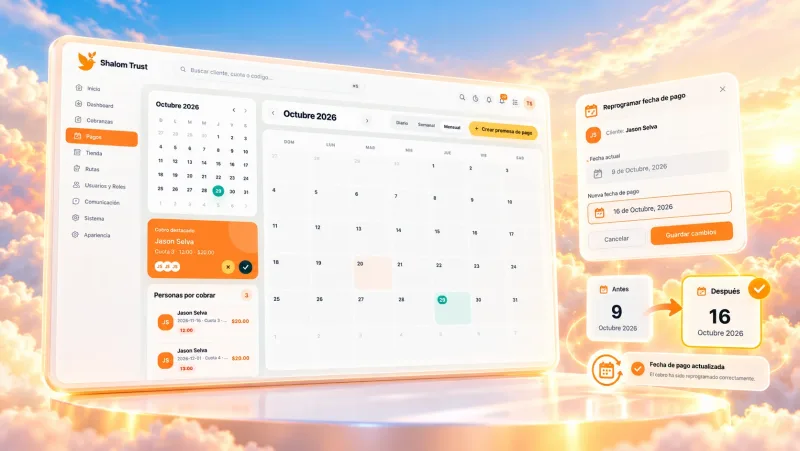
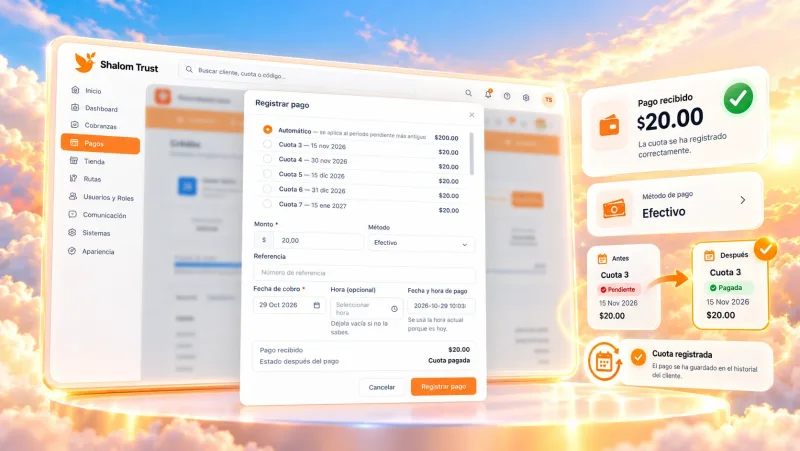
You record it with its method, such as cash, and it is applied to the oldest pending installment. It is saved in the history and the reminders for that installment are cancelled.
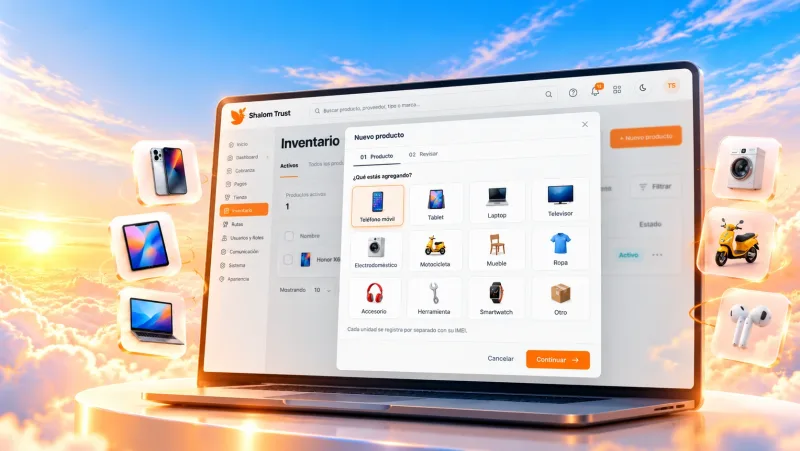
Each unit is recorded separately with its IMEI or serial number: phones, tablets, laptops, motorcycles and more.
Whether a device is unlocked depends on how it was locked and where the contract stands after the payment.
Finance Android and iPhone with the protection that fits each platform, and offer every customer the device they prefer.
Shalom Trust integrates an MDM provider for Android. On enrolled devices, and depending on the model, it allows:
Lock and unlock the screen remotely, on both Android and iPhone.
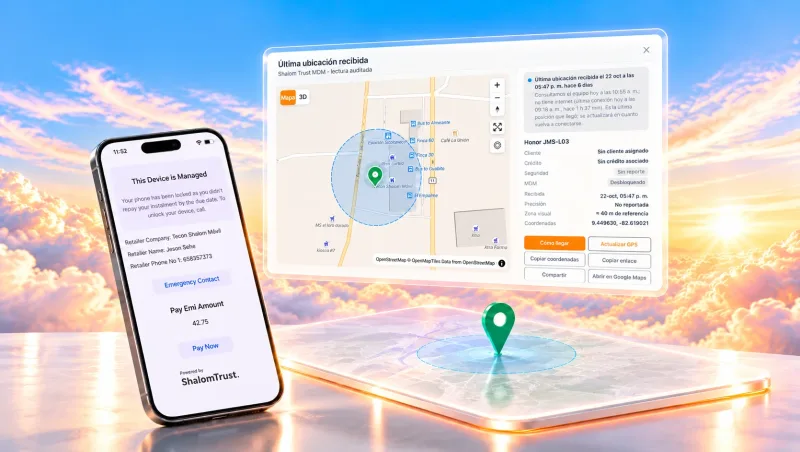
The locked phone shows your business screen with its contact details, and no debt information.
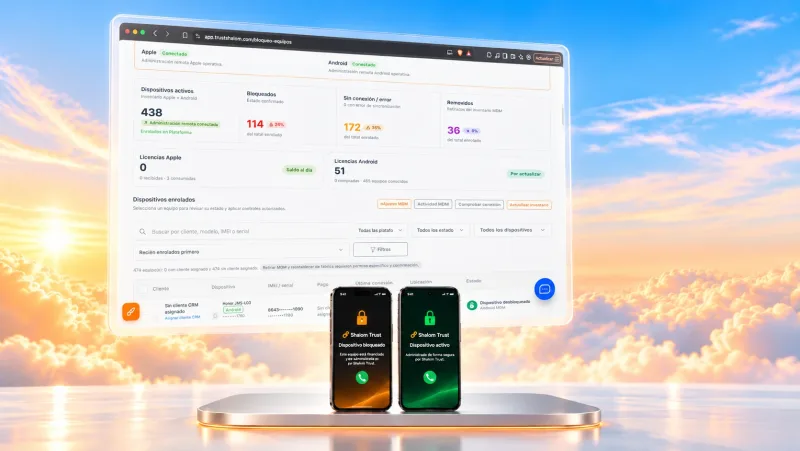
Change the wallpaper of enrolled Android devices remotely.
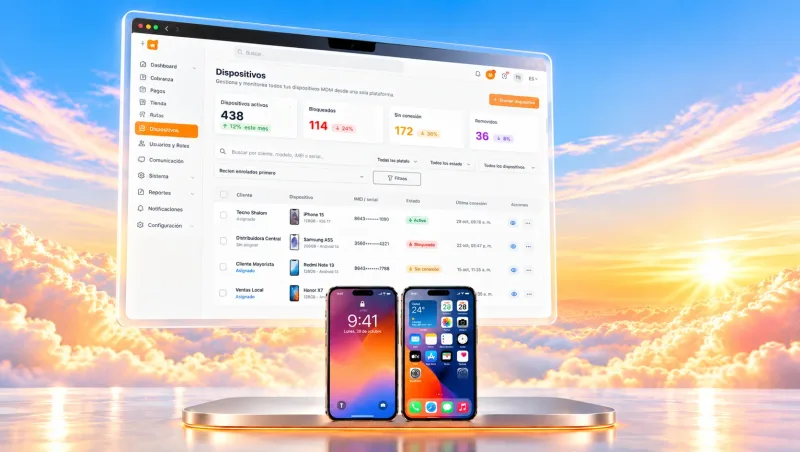
See the last location the phone reported on a map, with date and time, and open it in Google Maps.
First, the lock from Shalom Trust. Even if the customer factory resets the phone, the device stays protected.
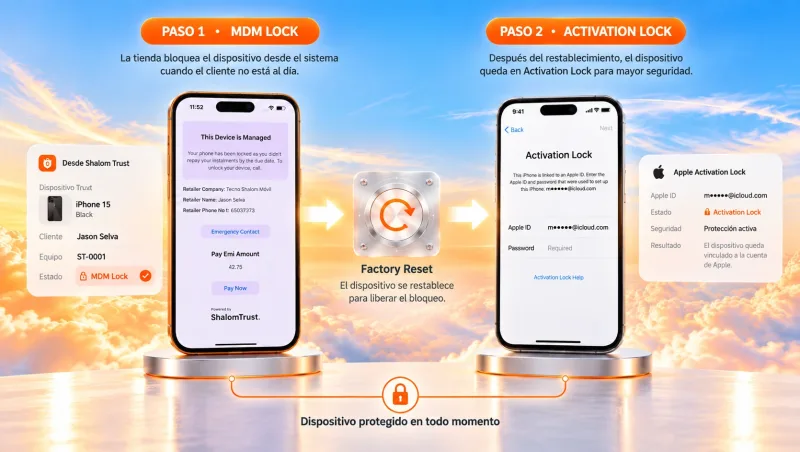
Each device is linked to the customer and their credit, with the contract generated automatically from their details.
Before you start, we confirm with you which models in your catalog you can finance. Android MDM for financed phones →
Set up each iPhone and iPad when you sell it with Shalom Trust’s guided process. Once it is ready, it is under your management and you can lock or unlock it remotely.
Apple MDM for financed devices →Every iPhone and iPad is linked to its customer and credit, and each contract governs a single device. That way you always know which device belongs to each sale.
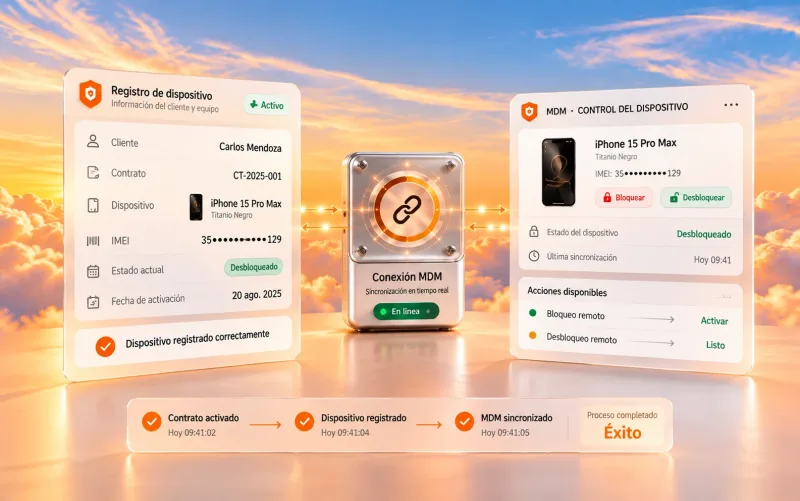
Shalom Trust connects credit information with device management actions.
The business registers the device in Shalom Trust when it sells it.
The device is enrolled in MDM through a guided process, on Android as well as on iPhone and iPad.
It is assigned to a customer and a contract. Each contract governs a single device.
The system follows that contract’s installment schedule.
When an installment passes the configured days overdue, the overdue policy determines what happens next.
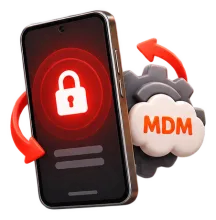
If the rule calls for it and the device supports it, the allowed action is sent to the MDM provider within the hours you have configured.
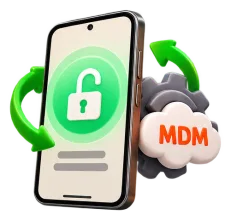
Once the payment is confirmed, the unlock is handled automatically or manually, depending on the policy and the device’s capabilities.
These features are for devices your business sells and manages through an authorized process. The customer must know, and accept in their contract, that the device is MDM-managed and in which cases it can be restricted.
Only lock devices that were legitimately enrolled and are linked to an active contract.
Tell the customer the lock and unlock terms in writing.
Comply with your country’s consumer protection and personal data regulations.
Do not lock devices without authorization: manual actions are logged with who performed them.

The lock screen only shows the name, company, branch and contact phone number, never the amount owed.

Your Android and Apple devices in one panel.
Each device with its customer and contract.
Days overdue, hours and exceptions per branch or device.
The system evaluates and acts according to your rules.
Payments update the device status.
Enrollment, lock status and last action for each device.
Yes. Every device is protected from the moment of sale: lock it from your dashboard or let the system do it automatically after the days overdue you set, with the condition accepted in the customer's contract.
Before you start, we review the models in your catalog with you and confirm which ones you can finance with confidence. That way you sell knowing every device will be protected.
Yes. You can finance iPhone and iPad with remote lock and unlock, so you can also sell to customers who prefer Apple.
The command reaches the phone as soon as it reconnects. On Android you can also hand out an offline unlock code, and if the credit is still overdue the system tries to lock the device again once it is back online.
Yes. With automatic unlock turned on, the system requests it as soon as payment of the overdue amount is confirmed, with no calls or waiting for your customer. An authorized person can also do it whenever you need.
Your MDM licenses and setting up each device when you sell it. Shalom Trust guides you step by step so your staff can do it without complications.
They are quoted by platform and number of devices, separately from the CRM plan. That way you pay for what you actually use, and your investment grows with your sales.
Your customer knows their device depends on staying up to date, and you see every device linked to its customer and credit. Less chasing payments and more control over your portfolio.
In a demo we show you how the overdue policy is set up and how each device looks in the panel.